BB720A WiFi Printer: IP Address Setup And Addition Guide
Leave a message
Setting up and adding BB720A WiFi printer IP
一,printer setup
1, The printer is set to turn on the WiFi function
1.1 Long press the key on the printer to enter the "Setup Menu", as shown in the figure.

1.2 Press the  key, select "Setup Menu Network", then press the key, The function options will appear, Press the
  key again, WiFi item appears, and press the key once,An arrow appears to indicate.

2.IP address reset:
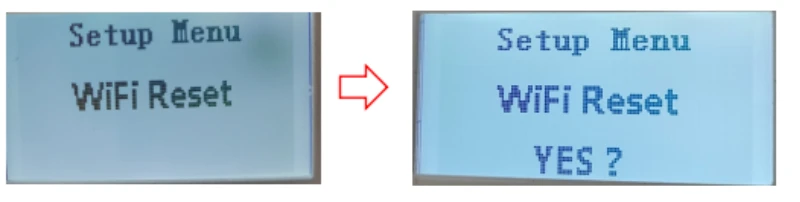
2.1 Long press the printerkey to enter the "Setup Menu", Press the  key to enter the" Setup Menu WiFi Reset", as shown in the figure.

2.2 On the "Setup Menu WiFi Reset" page, Press the key, The "YES?" pop-up appears, Press the key again, Return to the main page automatically, as shown in the figure.
二,IP address settings:
1) Method 1 (Set IP address in Android app)
1.Click the "WiFi "app to open the settings page, as shown in the figure.

2.Click "Select Wi-Fi" to connect to WLAN. You will see the WiFi of "BB720A". Click Connect. After the connection is successful, click the arrow in the upper left corner to return to the settings page, as shown in the figure.


3.On the APP settings page, enter the WiFi name in the WiFi Network field, the WiFi password in the WiFi Password field, the IP address to be set in the WiFi IP field (e.g., 192.168.2.100), the sub net mask in the WiFi Mask field (e.g., 255.255.255.0), and the default gateway in the WiFi Gateway field (e.g., 192.168.2.100). Then click Save to complete the settings, as shown in the figure.

2) Method 2 (Set IP address on the computer):
1.Connect the USB cable to your computer and printer

2.Open Control Panel-Devices and Printers, right-click the "Baobi Printer BB720A" icon, select the pop-up window, and click"Printing preferences",The "Baobi Printer BB720A Printing Preferences"window will appear.,Select "Options" as shown in the figure.


3.In the Options settings, under the WiFi settings box, enter the WiFi name, password, and IP address, then click Save WiFi settings to save, as shown in the figure.


三,View printer IP address
Long press the printer key,Go to the "Setup Menu",Press ,Go to the "Network Setup Menu",Press the
  key again,Go to Setup Menu> Network Check> WiFi,then press,Displays the current printer's WiFi name and IP address, as shown in the figure.


四,Add BB720A WiFi printer
1. Open Control Panel-Devices and Printers, then click Add a printer, as shown in the figure.

2.Click "The that l want isn't listed" as shown in the image.

3.Select 'Add a printer using a TCP/IP address or host name' and click 'Next'.

4.Select "Auto detect" for Device type.,Enter the IP address (e.g., 192.168.2.100) for Host name or IP address, then click "Next".

5. Select "Custom" and click Next.

6.The Manufacturer selects "BAOBIWANXIANG", the printer model is "BaobiPrinter BB720A", then click Next.

7.Select "Use the driver that is currently installed (recommended)" and click Next.

8.Enter the printer name(Baobi Printer BB720A), then click Next.

9.Select Do not share this printer, then click Next.
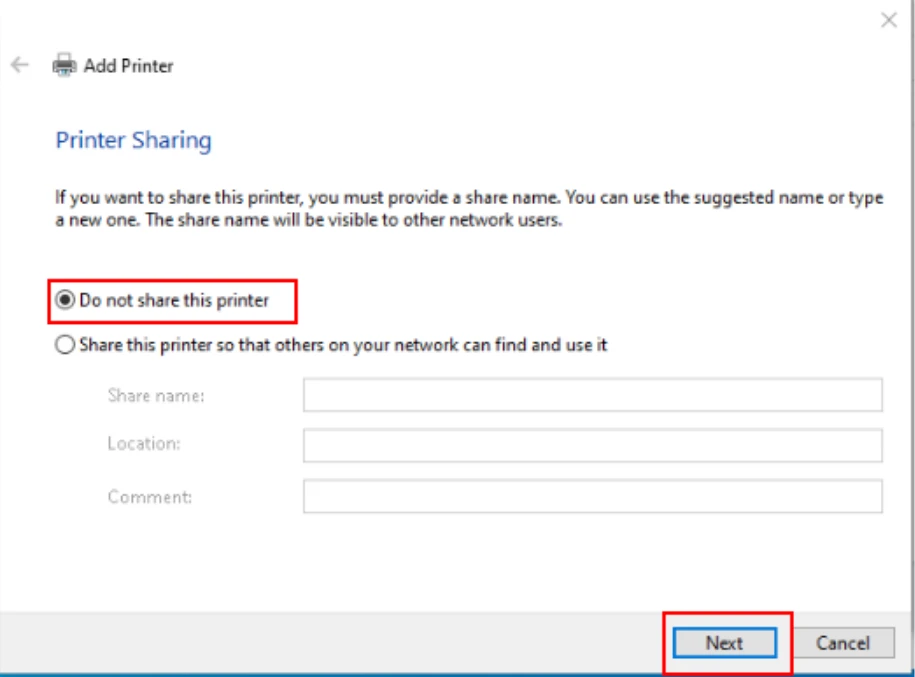
10.Drop "Finish",

11.After adding the WiFi printer, the device and printer will display the newly added "BaobiPrinter BB720A".

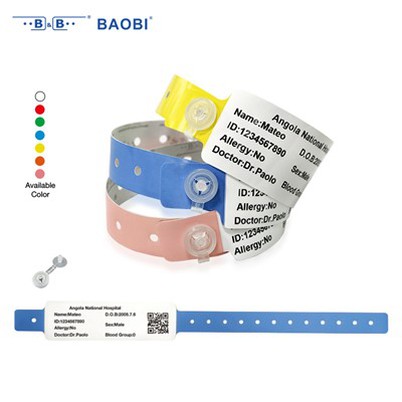
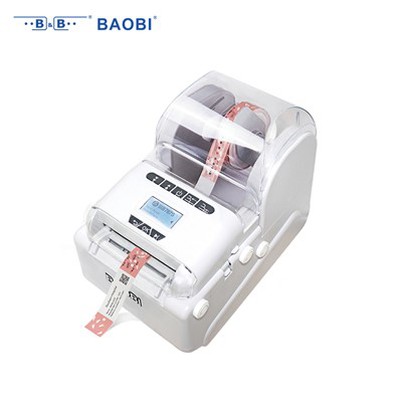
Barcode Wristband Printer BB720A

The BB720A is your go-to choice for high-performance wristband printing. Compact, user-friendly, and highly compatible, it elevates your work efficiency effortlessly. Bulk orders welcome-reach out now for competitive prices and premium service!